
Piano Visualizer
Turn a piano recording or MIDI file into a falling-notes video with a clean grand piano sound, glowing keys and sparks. Export MP4, WAV or MIDI. 100% in your browser - your files never leave your device.
How to make a piano visualizer video
Six steps from a file to a finished video. Nothing to install, no account needed, and your music never leaves your device.
 Step 1
Load a piece
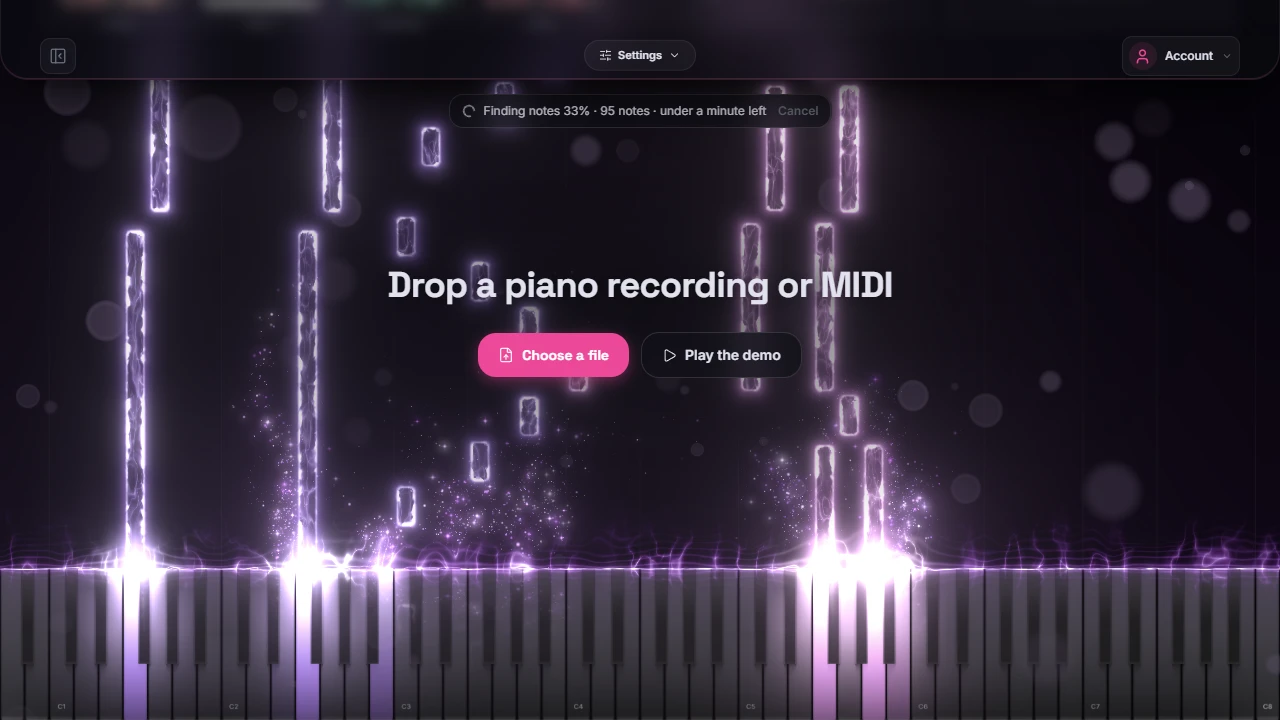
Drop a MIDI file or a solo piano recording (MP3, WAV, M4A, FLAC or OGG) anywhere on the scene. A MIDI file plays right away.
A recording goes through an AI transcription model that finds every note, how hard it was struck and the sustain pedal. It usually takes a little longer than the recording itself, and the scene keeps playing while it works. No file at hand? Start one of the famous pieces in the Demos tab.
 Step 2
Pick a theme
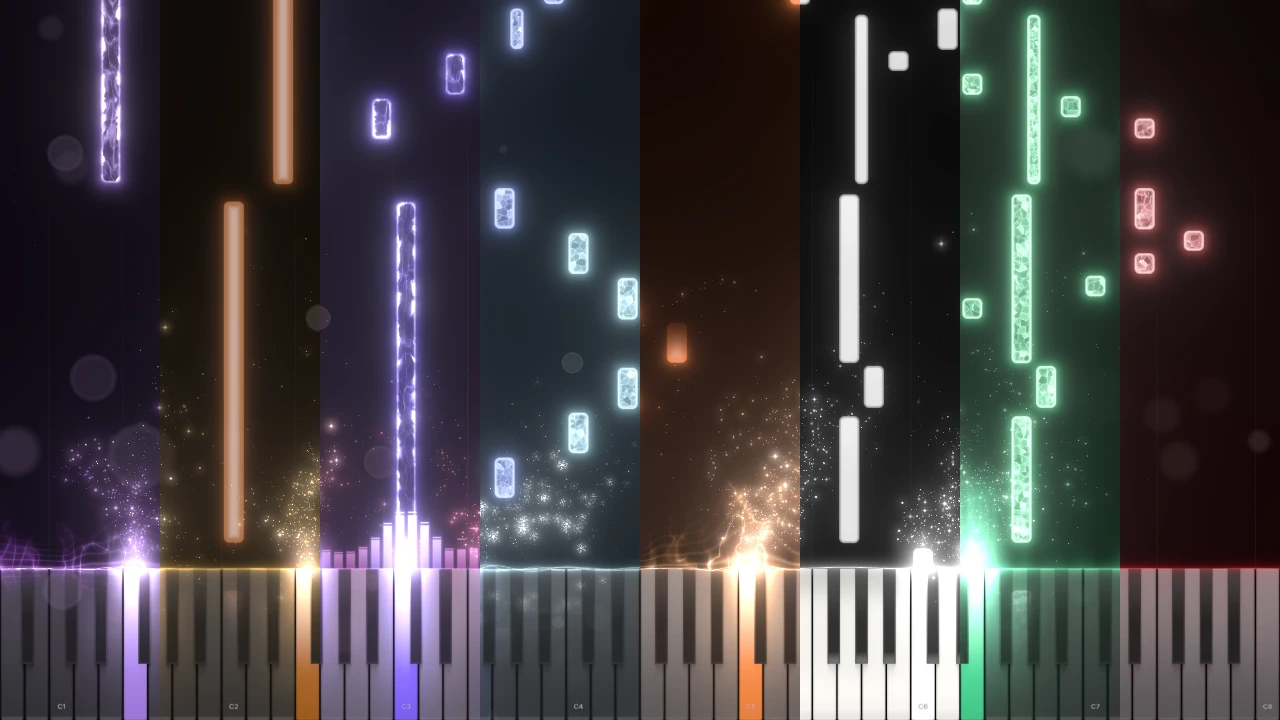
A theme sets the whole look in one click: the colours, the style of the notes and keys, the light and the mood. There are 8, from Amethyst to Ruby.
Change any colour and the theme becomes your own.
 Step 3
Shape the notes and keys
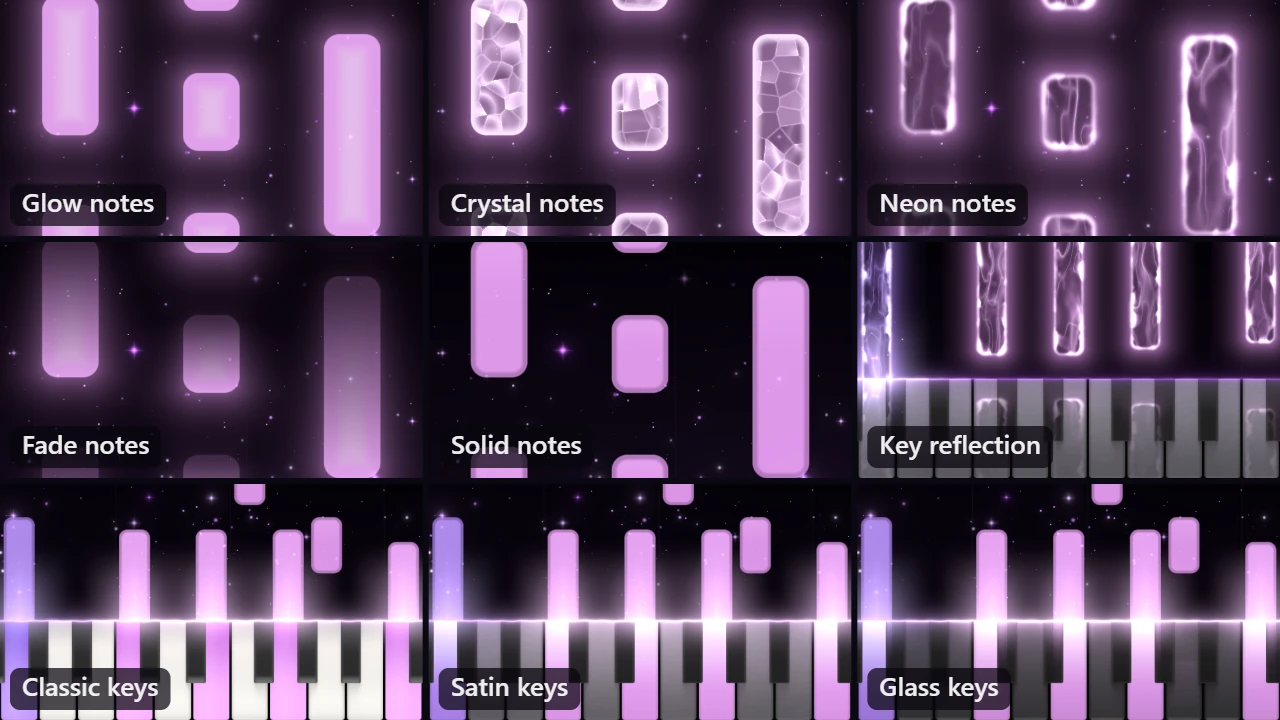
Notes fall as Glow, Crystal, Neon, Fade or Solid, in one colour or split between the left and right hand at a key you choose. Set how long they fall, and whether a playing note lights up whole or only where it meets the keys.
The keyboard comes in Classic, Satin or Glass, with an optional reflection of the notes above it, and shows all 88 keys or only the range the piece uses.
 Step 4
Add effects
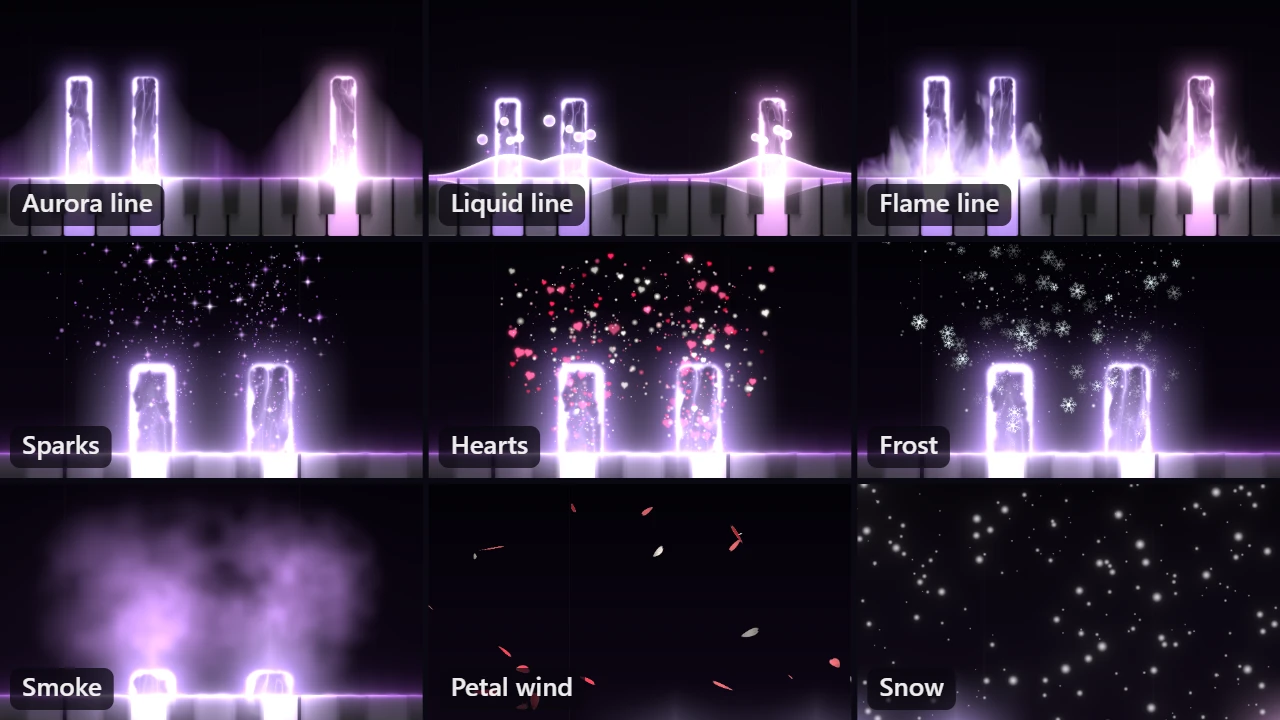
Sparks rise from every key you strike, as light dust, frost crystals or festive glitter in a colour of your choice, with soft bubbles drifting around them. Add smoke or falling snow if you like, and for the season swap the bubbles for snowflakes, pumpkins or bats.
Pick one of eleven hit lines, from a thin wire to aurora, fire, drifting smoke and liquid light, set how snappy and how hard each strike hits, and put your own photo behind the notes.
 Step 5
Choose the sound
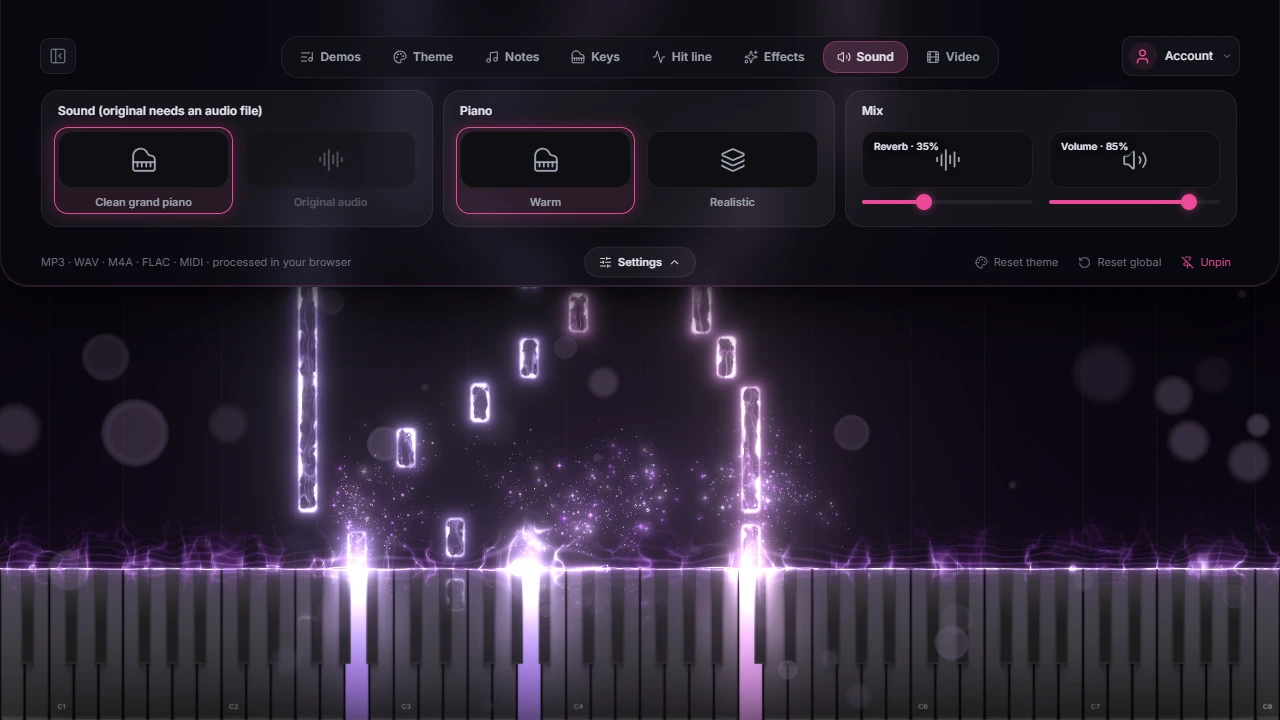
The notes are played on a sampled concert grand with a real sustain pedal and the reverb of a large hall, so the video often sounds cleaner than the recording it came from.
Warm is the default piano, Realistic plays every velocity layer as it was recorded. Prefer your own performance? Switch a recording back to its original audio.
 Step 6
Export the video
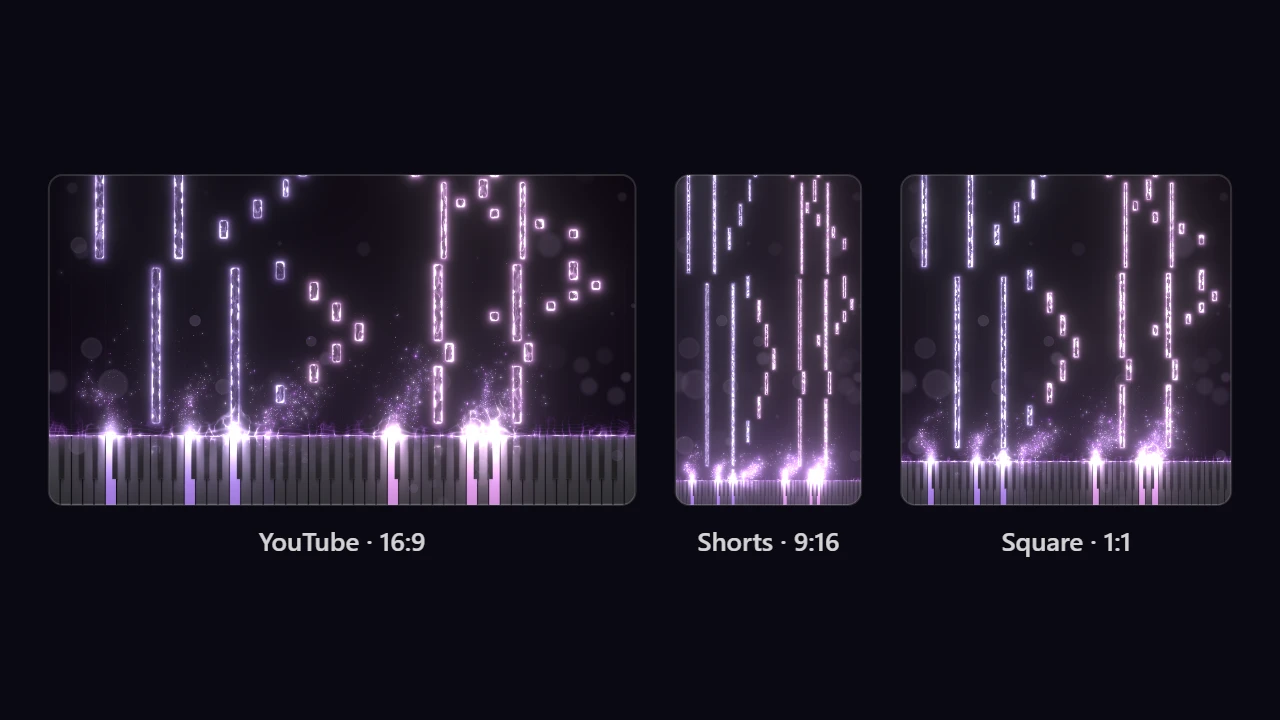
Choose 16:9 for YouTube, 9:16 for Shorts, Reels and TikTok, or a square, and lift the keyboard to leave room for captions. Export an MP4 in 1080p, 1440p or 4K at 30 or 60 fps.
The video is rendered frame by frame, so it plays perfectly smooth however fast your computer is, with a small rave-tools.com mark in the corner. Video export works in Chrome, Edge, Opera and other Chromium browsers on a computer. The sound saves as WAV and the notes as MIDI, handy when you started from a recording.
Famous pieces in falling notes

About
Piano Visualizer makes the falling-notes piano videos known from YouTube piano channels, without desktop software. It is made for pianists posting covers, teachers who want to show a piece hand by hand, and anyone who wants to see the music they listen to. It also works as a piano to MIDI converter: a recording comes out as notes you can download.
Recordings are transcribed by Transkun, an open piano transcription model by Yujia Yan and Zhiyao Duan, running in your browser on several processor threads. The notes are then played on a sampled Yamaha C5 grand through one audio graph for listening and export, so the file sounds exactly like the preview. For the video the scene is rendered again frame by frameand encoded by the browser's own video encoder, which is why a 4K export is as smooth as a 1080p one, on any computer.
Everything runs 100% in your browser: your recordings, MIDI files and photos never leave your device. The only downloads are the transcription model and the piano samples, static files from our public Hugging Face repository that your browser keeps after the first visit. Free, with no account needed.
Credits: Transkun model by Yujia Yan (MIT licence). Salamander Grand Piano samples by Alexander Holm (CC BY 3.0). Demo MIDI files by Bernd Krueger, piano-midi.de (CC BY-SA 3.0 DE).
Frequently Asked Questions
A MIDI file (.mid or .midi) or a solo piano recording in MP3, WAV, M4A, FLAC or OGG, up to 20 minutes long. A MIDI file plays note for note right away. A recording is first turned into notes by an AI transcription model running in your browser.
Yes. The transcription model finds every note with its start, length and velocity, plus the sustain pedal, and you can download the result as a MIDI file to open in any DAW or notation app. It uses Transkun, one of the most accurate open piano transcription models.
Usually a little longer than the recording itself in Chrome, Edge or Opera on a recent computer; a 4-minute piece takes around 5 minutes. Browsers that cannot run it on several threads, such as Safari, are about three times slower. The first time, the model (about 58 MB) downloads once and stays cached. You can keep watching and changing the settings while it works.
It works best with solo piano. The model is trained on piano recordings, so vocals, drums and other instruments produce wrong or missing notes. If it finds no notes at all, the tool tells you instead of showing an empty video.
The notes are played again on a sampled concert grand, the Salamander Grand Piano, with the real sustain pedal and a hall reverb, so every key is clear and the bass is full even when the original was recorded on a phone. For a recording you can switch back to its original audio at any time.
An MP4 in 16:9 for YouTube, 9:16 for Shorts, Reels and TikTok, or 1:1, at 1080p, 1440p or 4K and 30 or 60 fps. The video is rendered frame by frame rather than recorded from the screen, so it comes out perfectly smooth on any computer. Video export works in Chrome, Edge, Opera and other Chromium browsers on a computer; WAV audio and MIDI work everywhere.
A small rave-tools.com mark sits in a corner of the video. Keeping it is the one thing we ask in return for the free tool; the audio and MIDI downloads have no mark.
No. Transcription, playback and video rendering all run on your device. The only downloads are the piano samples and the transcription model, static files that come to your browser and are cached.
Yes. The compositions are in the public domain, but the MIDI files of the demos are by Bernd Krueger (piano-midi.de) under CC BY-SA 3.0 DE, so a video made from a demo has to credit him and be shared under the same licence.
The video contains your own render, not the original recording, but the composition still belongs to its author. Platforms such as YouTube usually treat it as a cover: the video stays up and the rights holder may claim the ad revenue. Pieces whose composers died long ago, such as Chopin, Debussy or Beethoven, are in the public domain.
From the blog
Free Synthesia and SeeMusic Alternatives for Falling-Notes Piano Videos
Synthesia has no video export, SeeMusic and Embers watermark free exports, Pianolyze charges per recording. Here is how the options compare, and a free one that also works from audio.
Read →piano-visualizerPiano Video Copyright: YouTube Content ID, Public Domain, and TikTok Rules
Why your own Chopin recording gets a Content ID claim, how to dispute it without risking a strike, what free MIDI licences ask of you, and how covers are handled on YouTube and TikTok.
Read →